BIDS for MEG
BIDS (Brain Imaging Data Structure) is a standard for organizing and formatting neuroimaging data. It provides a consistent way to structure data files and directories, making it easier to share and analyze data across different platforms and software.
The BIDS standard is widely used in the neuroimaging community and is supported by many software tools and libraries. By following the BIDS format, researchers can ensure that their data is easily accessible and interpretable by others, facilitating collaboration and reproducibility in neuroimaging research.
Read more about BIDS for MEG at the BIDS website.
BIDS on SPICE
See general steps (0 to 2) on: BIDS on SPICE
There are some common steps you should go through for making any imaging data to BIDS, see link above.
3. Set MEG-BIDS configurations
Most important is to set names of the tasks. If not using default names of conversion table and config settings, you can also modify those.
Task names are the harmonized names that you want to have in your final BIDS structure. When running the analysis in the next step all tasks not matching the names in this field will be marked as "check" and require a manual handling before conversion.
4. Editor
Run analysis or load existing conversion table by pressing Analyze / Refresh . This will scan your files, converted and newly added and suggest BIDS conversion parameters.
File can be marked as:
run: file ready to be converted
check: file needs to be checked, edit manually
processed: file is already converted
skip: do not process file
missing: source file does not exist
error: conversion failed
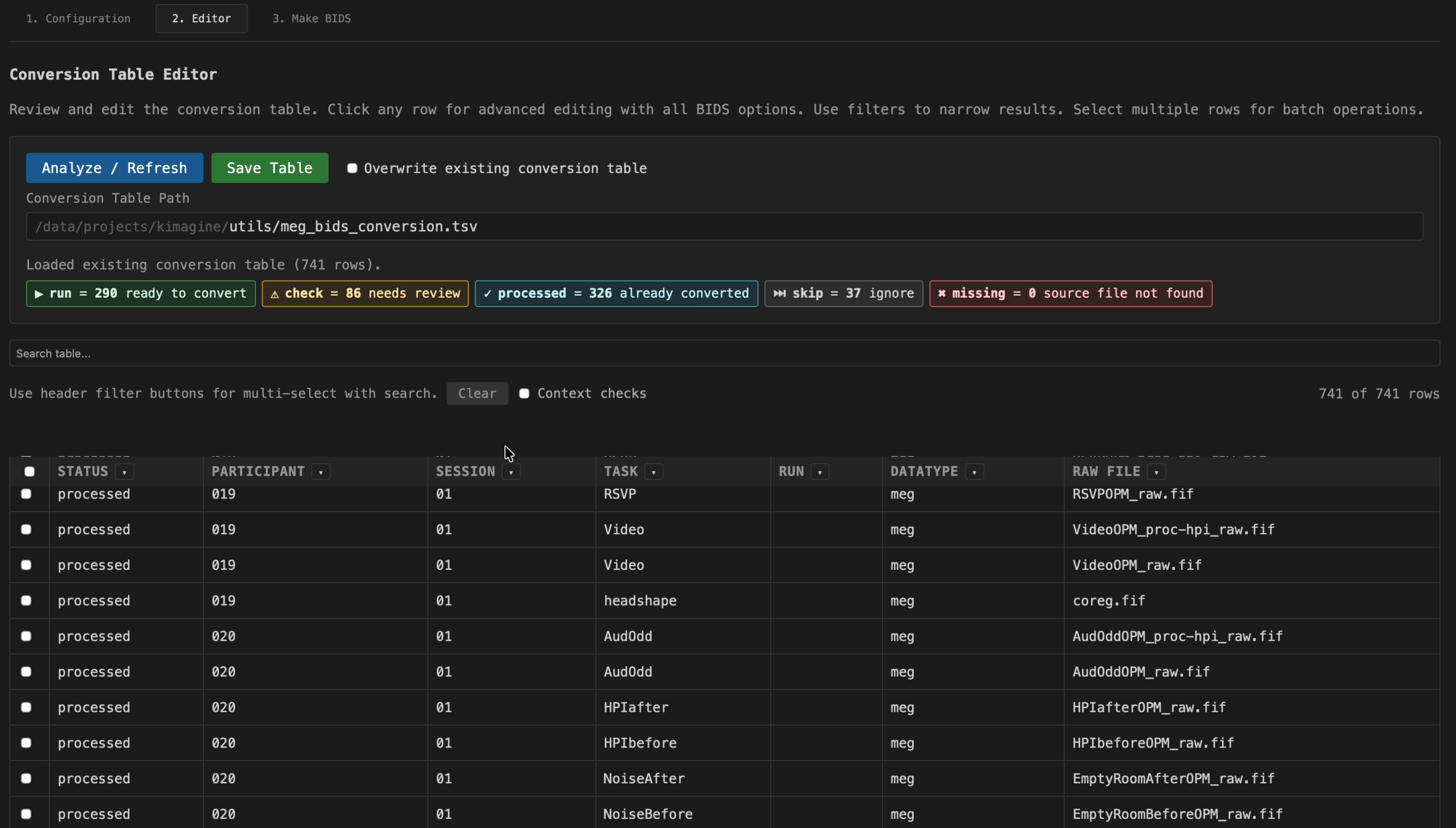
Editor view
You can use search and filters to see relevant entries. For editing click a row and you will be able to edit all BIDS fields for that entry.
Batch processing
You can rename files and change status in batch by marking the header check box. Filter the relevant files and mark all and change status or name, you will need to do this one at the time.
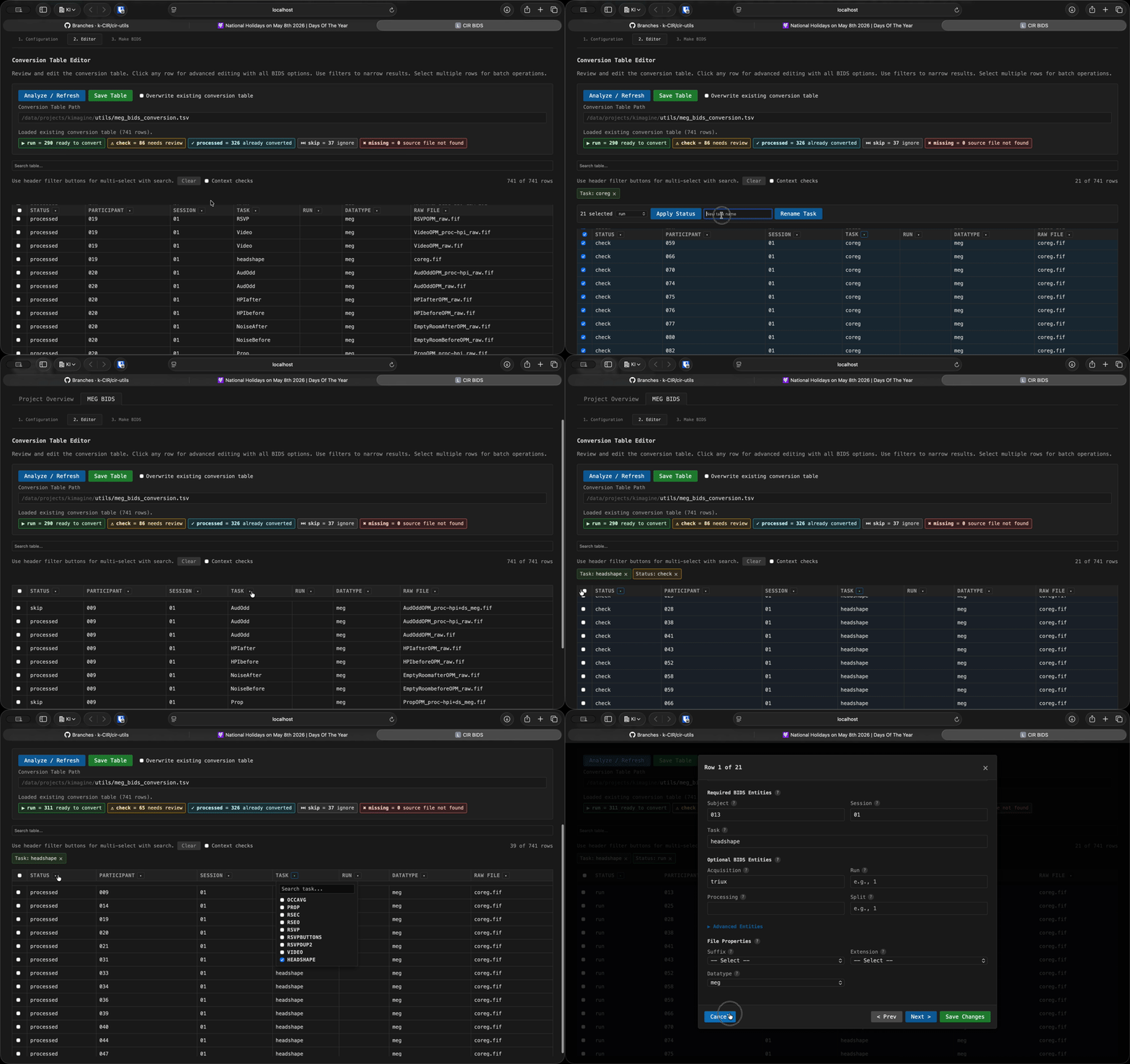
Batch processing
Context check
Often when you have deviant files you would like to see the other files from that subject and session. By clicking Context check you get an automatic filter for that. This is useful if filenames have multiple runs but this information is embedded in the name.
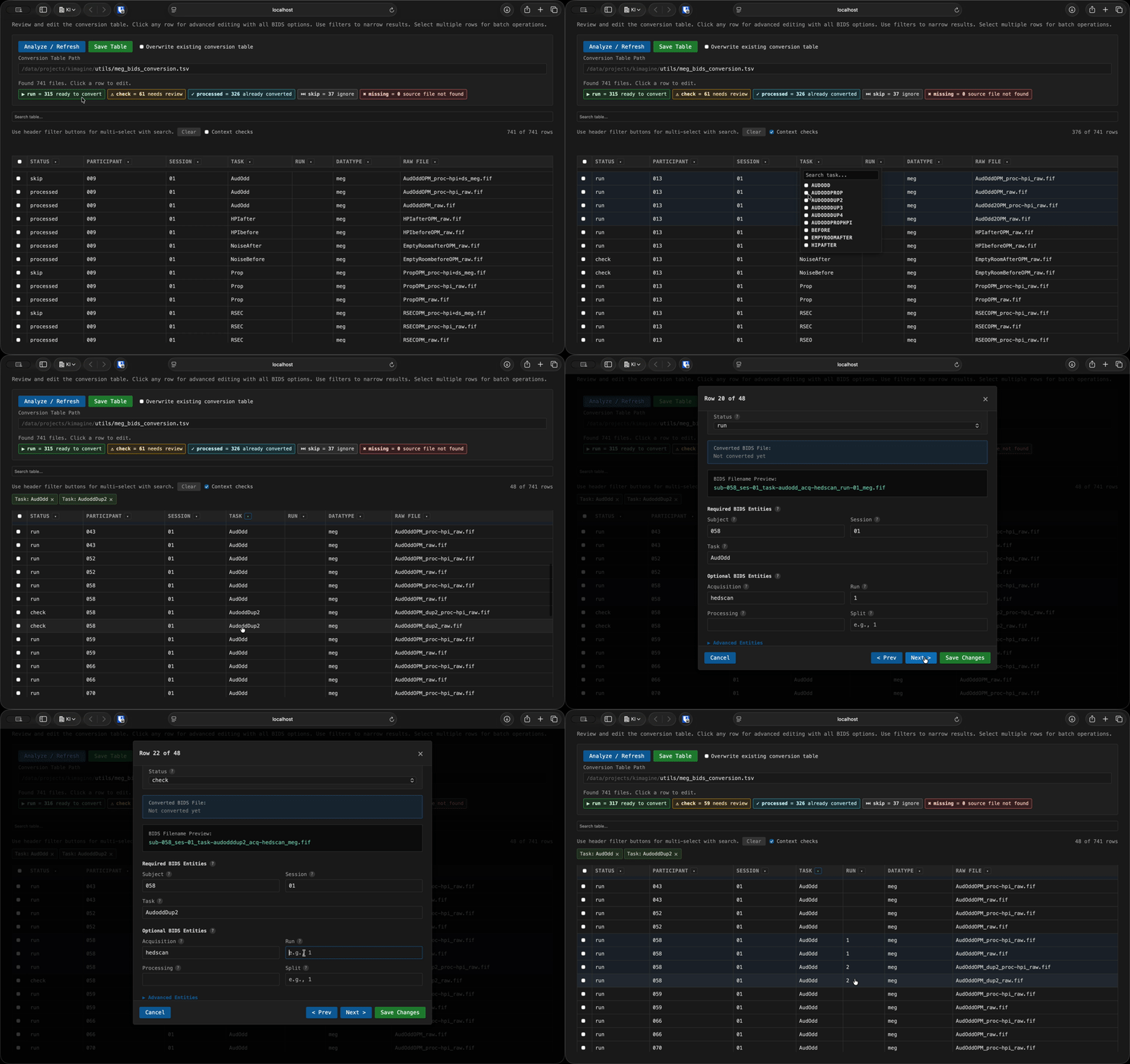
Context check
5. Make BIDS
When done editing and no more files are marked "Check", then you can run the conversion.