PETPrep on SPICE
Run via cir-utils
An easy way to run PETPrep on SPICE is through the cir-utils interface. The interface provides guidance on setting up and executing your PETPrep command, and tells you which PETPrep singularity containers are available to all users. Of course users can also use their own containers.
Running PETPrep through cir-utils invloves three easy steps: 1. Set up your command and save it as a config 2. Run PETPrep 3. Inspect outputs and perform quality control
Set up your command
First set up your PETPrep configuration. For this, you simply provide paths to your BIDS data, wanted derivatives folder, freesurfer licence and a folder that can be used as a temporary cache. Make sure this folder is created in a place where you have read and write access. Lastly, under singularity container, pick the version of PETPrep you want to run. The list of available singularity containers can be expanded in the future, so for conisistency we recommend using the same container for your entire project.
Next, there are two optional parts, you can add a --skip_bids_validation flag, that will prevent PETPrep from aborting if you have non-BIDS compliant data in your BIDS-folder, such as CT-data. Adding a participant will run PETPrep for that participant only, otherwise PETPrep is executed on the full BIDS input directory.
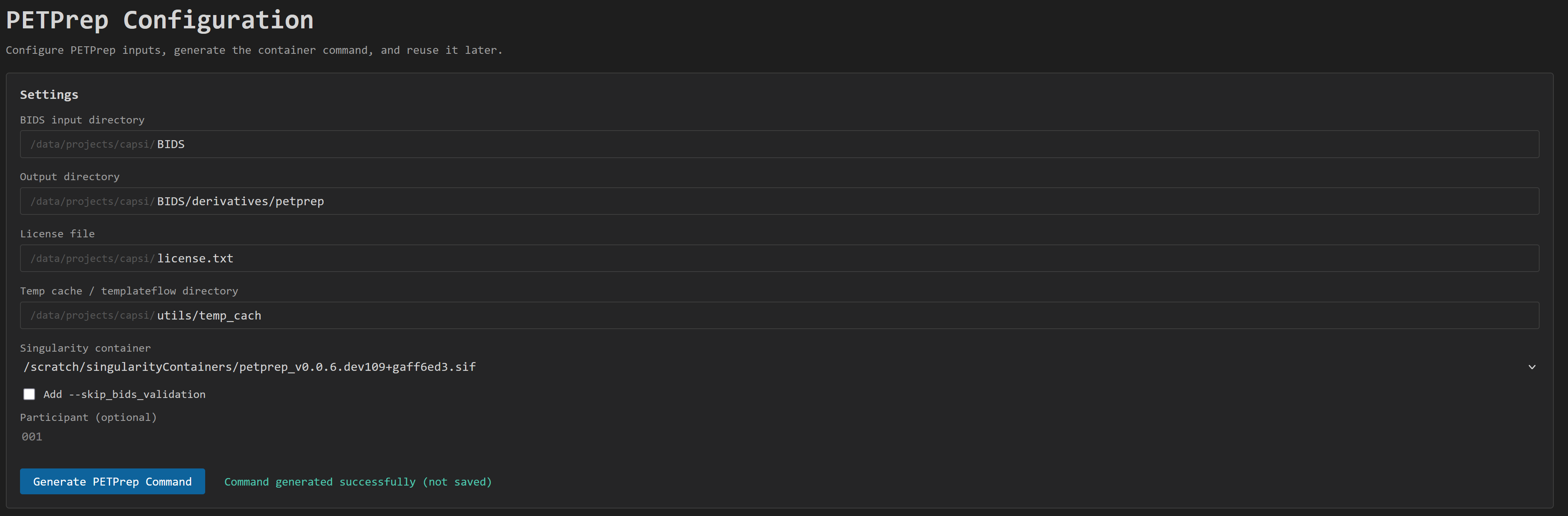
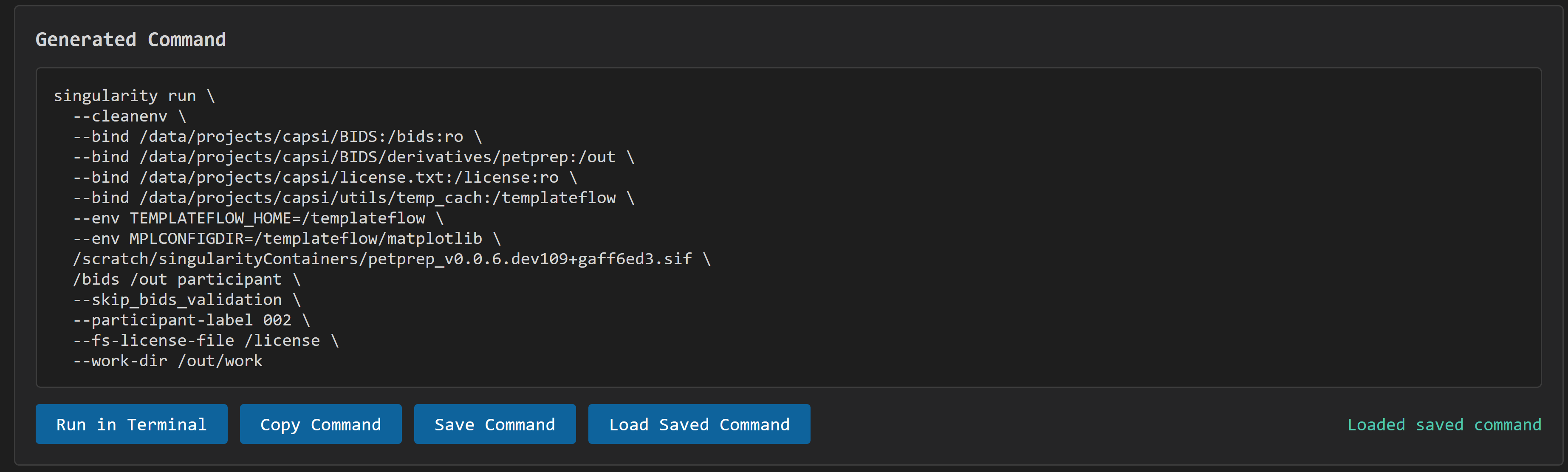
After clicking Generate PETPrep Command you will be able to save this for later use (it is saved under project/utils). Load Saved Command will load a command you have saved earlier.
Run PETPrep
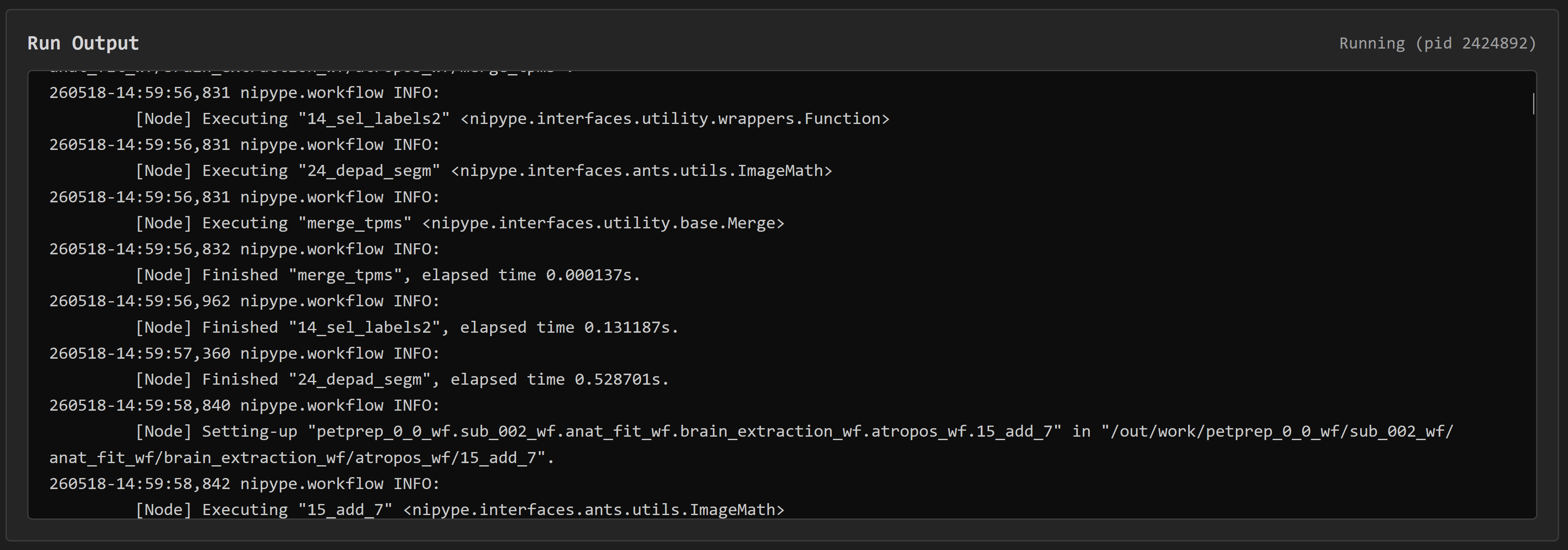
To execute your generated command, press Run in Terminal to directly execute the command. The Run Output window will first show "No PETPrep command has been run yet.", while in the top right corner you can see that the terminal is running, with a unique pid. It will take some time for the inital message to dissapear, but then you should see the output from PETPrep appear in your Output window!
Inspect your outputs and perform quality control
To make it easier to perform quality control, navigate to the PETPrep html browser. This will allow you to list and open any html files in a given directory (BIDS/derivatives/petprep by default). This means you don't have to use a remote desktop to inspect your outputs.
We are currently working on building a quality control tracker in the tab "PET QC Overview" that allows you to keep track of which subjects have had preprocessing done, and will allow you to mark different preprocessing steps as "approved" or "not approved".
Run in terminal
If you do not want to use cir-utils, you can also run PETPrep in terminal.