New user guide
KI network
During Q4 2026, the SPICE server is being updated to provide access to external users. That is, research partners and collaborators not neccesarily located at KI.
Until further notice, during the transition period, being connected to the KI network is still required.
That means either a wired connection at KI campus or connected to the VPN on a KI Karyon client.
No, just being connected to the "KI-Staff" wi-fi is not enough.
Having requested a user account you will have received an email that looks something like this:
Hello User, a user account has been created for you on SPICE (Shared Platform for Imaging in the CIR Environment).

See this page for instructions on how to connect: https://k-cir.github.io/cir-wiki/SPICE/

At first login you will be prompted to change your password and set up TOTP (Time-based One-Time Password) for two-factor authentication. After that, you can log in via the web portal or SSH using the same credentials.

username: myusername
password: G9nT5I0F#
groups: my-project
Migrating to new authentication system
If you have been contacted to be migrated to the new authentication system, follow these same instructions as for a new user to setup a new password and TOTP. Your username will remain the same, but you will have to set up a TOTP in your authenticator app.
Open a terminal (Linux/macOS) or Command Prompt (Windows)
Type the following command to connect to SPICE, replacing myusername with the username you received in the email:
ssh myusername@compute.kcir.se
You will be prompted for your password. Enter the password you received in the email to log in.
On your first login, you will immediately be prompted to change your password by entering your current password (again) and then a new password of your choice.
Make sure to choose a strong password that you do not use anywhere else and never share your password with anyone. Best practice is to use a password manager to generate and store strong passwords.
With your new password accepted, a TOTP (Time-based One-Time Password) QR code will be displayed in the terminal. Scan this QR code with your authenticator app (e.g. Microsoft Authenticator for android or iOS) to set up two-factor authentication. If scanning the QR code doesn't work on your phone, you can manually enter the code displayed below the QR code into your authenticator app.
You are now all set to login with your new password and the 6-digit code generated by your authenticator app.
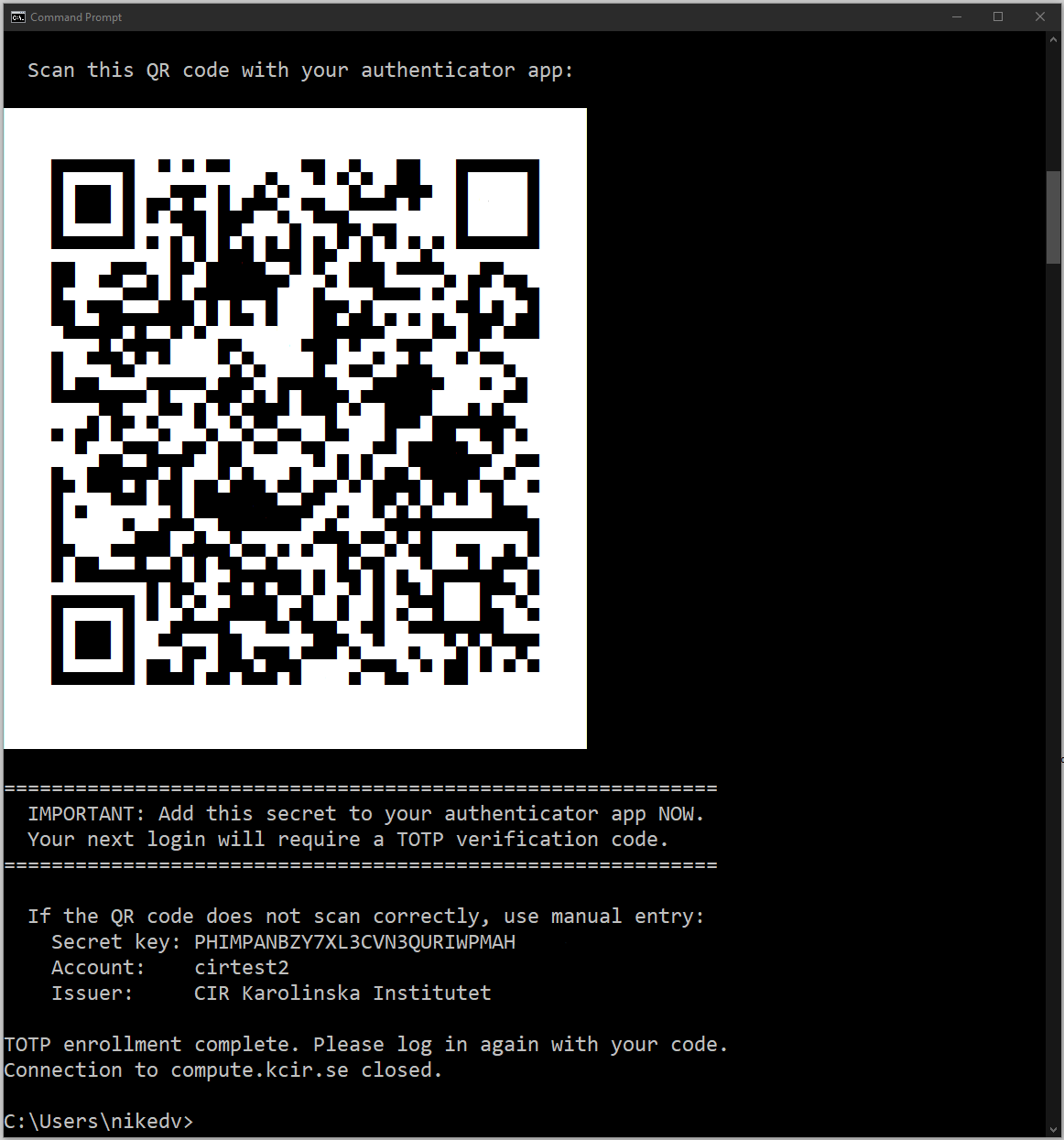
The QR code you'll see on first login after specifying your password.
See further details on using SSH keys or remote desktop on the How to connect page.